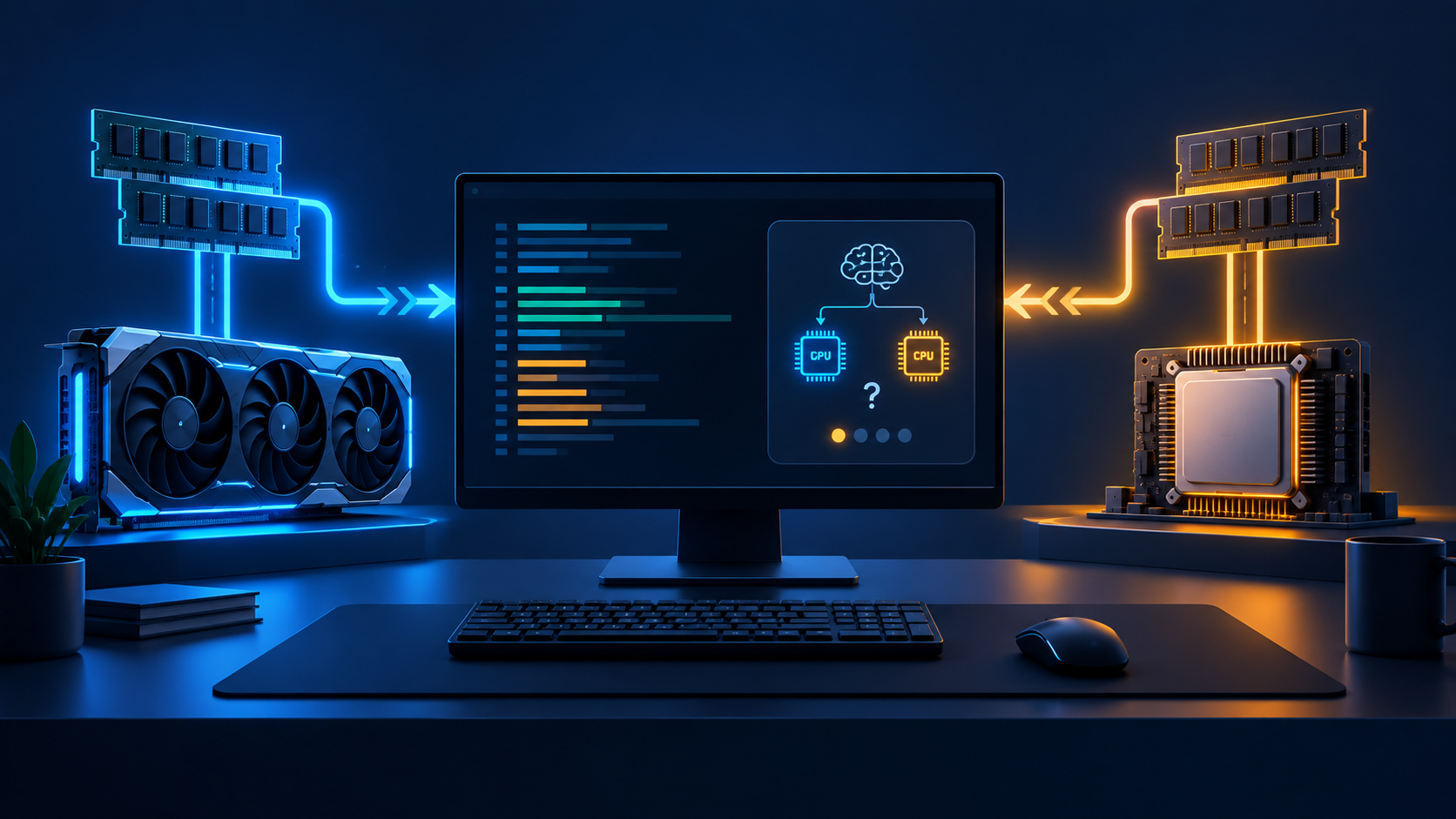
Short answer: Ollama is not necessarily “ignoring” your GPU. A model can be loaded on CPU because the available VRAM is insufficient, because the Ollama server is running on a different machine, because a driver or container cannot expose the GPU, or because the active backend fell back after discovery failed. The first useful check is ollama ps, not a benchmark or a reinstall.
People often use “CPU inference” to describe two different observations. One is placement: where Ollama loaded the model. The other is utilization: what the CPU or GPU happens to be doing while a response is generated. They are related, but they are not the same measurement.
Ollama’s official FAQ says that ollama ps shows the processor split for models currently loaded. 100% GPU means the model is entirely in GPU memory, 100% CPU means it is in system memory, and a value such as 48%/52% CPU/GPU means it is split. That is the evidence to collect before changing drivers or environment variables. A GPU that is briefly quiet is not, by itself, proof that the model was loaded on the CPU.
What “running on CPU” actually means
| What you see | What it proves | What it does not prove |
|---|---|---|
100% CPU in ollama ps |
The current model is loaded in system memory. | It does not identify whether the cause is capacity, discovery, endpoint selection, or a backend failure. |
100% GPU |
The current model is fully placed in GPU memory. | It does not guarantee a fast or responsive experience at a larger context or under concurrency. |
| A CPU/GPU split | Ollama is offloading part of the model between memory pools. | It does not tell you that the split is optimal for your workload. |
| No model in the list | There is no currently loaded model for that Ollama process. | It does not tell you whether the next load will use CPU or GPU. |
1. Prove which Ollama server you are inspecting
Before troubleshooting the GPU, make sure the command-line client and the process serving the request are talking to the same Ollama instance. Ollama binds to 127.0.0.1:11434 by default, and OLLAMA_HOST can change the server address. A desktop app, a shell, Docker, and a remote client can therefore be looking at different processes.
# Illustrative checks; adapt the host and port to your setup.
echo "$OLLAMA_HOST"
curl http://127.0.0.1:11434/api/version
ollama ps
If OLLAMA_HOST points to another machine, run ollama ps and inspect the logs on that machine. If a web UI or application has its own Ollama base URL, compare it with the endpoint you just checked. Do not “fix” the local GPU when the request is intentionally being sent to a remote CPU server.
2. Check memory fit before changing drivers
A model can be valid, downloadable, and still be a poor fit for the available GPU memory. The model artifact is only one part of the runtime budget. Quantization changes weight storage; context length adds KV-cache memory; parallel requests multiply the context-related pressure; images, adapters, and other applications consume additional capacity. A model that fits at 4K context may not fit at 32K, and a model that fits for one request may be queued or partly offloaded when several requests arrive.
Use the LLM VRAM Calculator for a transparent planning estimate, and read its assumptions rather than treating the result as a hardware certification. The Ollama RAM and VRAM guide explains the difference between “can allocate” and “feels usable.” After loading the model, use ollama ps again. The runtime result is more useful than a promise based only on a model name.
Ollama documents a default context window of 4096 tokens and supports changing it with OLLAMA_CONTEXT_LENGTH, num_ctx, or the relevant run parameter. It also documents that required memory scales with OLLAMA_NUM_PARALLEL × OLLAMA_CONTEXT_LENGTH. This is why a small model can still move to CPU when the context or concurrency settings are increased.
| Change | Memory consequence | Safer diagnostic move |
|---|---|---|
| Smaller quantization | Often reduces weight memory, with a possible quality trade-off. | Compare the exact Ollama tag and quantization; do not infer from a family name alone. |
| Longer context | Raises KV-cache demand and may push a borderline load out of VRAM. | Recheck at the actual num_ctx; start with the documented default while isolating the issue. |
| More parallel requests | Raises concurrent context pressure and can cause queueing or offload. | Temporarily lower parallelism for diagnosis, then size for the intended workload. |
| Another model already loaded | Leaves less free VRAM or RAM for the next model. | Stop unused models, retry once, and compare ollama ps before and after. |
3. Read the server log before reinstalling anything
When GPU discovery fails, the log usually gives a more specific clue than the client error. Ollama’s troubleshooting guide documents different log locations: ~/.ollama/logs/server.log on macOS, journalctl -u ollama --no-pager --follow --pager-end for a Linux systemd service, and docker logs <container-name> for a container. A manually started ollama serve process writes to its terminal.
# Choose the one that matches your installation; these are examples.
# macOS
cat ~/.ollama/logs/server.log

# Linux systemd
journalctl -u ollama --no-pager --follow --pager-end

# Docker (replace the name)
docker logs <container-name>
Look for GPU discovery, backend selection, driver initialization, device-unavailable errors, or a message that the process selected a CPU library. Ollama’s troubleshooting documentation explains that it chooses among CPU and GPU libraries based on detected capabilities, and that OLLAMA_LLM_LIBRARY can override that autodetection. Do not force a CPU or GPU library as a first step: record the current log and use an override only when you understand why autodetection is wrong.
4. Follow the hardware-specific path
NVIDIA
Ollama’s current hardware documentation lists NVIDIA compute capability 5.0 or newer and driver 550 or newer, with a newer driver requirement for compute capability 5.0–6.2. Treat that as a compatibility check, not a universal performance guarantee. nvidia-smi -L can show the visible GPU UUIDs. If it shows no device, Ollama cannot use a device that the operating system does not expose.
Linux suspend/resume can also leave NVIDIA discovery in a bad state. The official guidance mentions reloading the UVM module or rebooting as troubleshooting steps. Those are host-level operations: use the exact commands from the official guide and your administrator’s change process, rather than copying a privileged command into an unfamiliar machine.
AMD Radeon
AMD uses a different path. Ollama documents ROCm support and separate Linux and Windows driver requirements, with Vulkan providing additional support in some environments. Use rocminfo or the vendor’s documented tools to inspect AMD visibility; an NVIDIA-only check such as nvidia-smi is not a meaningful AMD test. In containers, Ollama’s Docker documentation shows the ROCm image and device mappings for /dev/kfd and /dev/dri. Device permissions and the host driver still matter.
Apple Silicon and Metal
Ollama documents GPU acceleration on Apple devices through Metal. This is a different route from CUDA or ROCm. If Ollama runs natively on macOS, investigate the native app/server logs and ollama ps. If it runs inside Docker Desktop on macOS, do not assume the container can access the Apple GPU: Ollama’s FAQ states that Docker Desktop on macOS does not provide the GPU passthrough needed for GPU acceleration. In that situation, a native installation and a container are different architectures, not interchangeable switches.
5. Containers: prove GPU passthrough independently
A container can start successfully while lacking the host GPU device. First separate “Docker can see the GPU” from “Ollama can schedule this model.” Ollama’s official Docker guide requires NVIDIA Container Toolkit for NVIDIA acceleration and shows a --gpus=all container. The same guide documents a ROCm image and device mappings for AMD.
# Illustrative NVIDIA passthrough check from Ollama's documented path.
docker run --rm --gpus=all ubuntu nvidia-smi

# An Ollama NVIDIA container uses the GPU flag as well.
docker run -d --gpus=all -v ollama:/root/.ollama \
  -p 11434:11434 --name ollama ollama/ollama
If the independent NVIDIA check fails, changing Ollama environment variables will not repair the container runtime. If the check succeeds but ollama ps still shows CPU, compare the container’s logs, environment, device visibility, and model endpoint. For AMD, use the ROCm or Vulkan instructions that match the host; do not combine NVIDIA and AMD flags.
6. Fix the smallest confirmed cause
| Confirmed observation | Likely boundary | Targeted next step |
|---|---|---|
| The model is larger than free VRAM at the requested context. | Capacity, not a missing toggle. | Reduce context/concurrency, choose a smaller or more suitable tag, or accept CPU/offload after checking the trade-off. |
nvidia-smi or rocminfo cannot see the device. |
Host driver, permissions, or hardware visibility. | Repair the vendor runtime first; keep Ollama unchanged until the host sees the device. |
| Host sees the GPU, but a container check fails. | Container toolkit, device mapping, or permission boundary. | Fix the container runtime and recreate the container using the official GPU path. |
| Native Ollama shows GPU, but the UI uses CPU. | Different endpoint or server process. | Compare the UI base URL with OLLAMA_HOST and query the same server. |
| Logs show a backend/library discovery failure. | Ollama backend selection or driver initialization. | Update only after checking the compatibility notes; use a documented library override as a reversible test. |
After every targeted change, load one known model, run ollama ps, and capture the processor split. Then test the actual context and request pattern. A one-line “GPU detected” check is not enough when the production workload uses a longer prompt, several simultaneous users, image input, or a remote endpoint.
When CPU inference is the correct result
CPU placement is not automatically a bug. It can be the honest result when the model does not fit in the available VRAM, when no compatible GPU exists, when the request is intentionally sent to a CPU host, or when a macOS container has no GPU passthrough. A small quantized model on a CPU can also be a sensible choice for an occasional private task. The decision should be based on latency, concurrency, privacy, electricity, maintenance, and the cost of an API or hosted model—not on the label “GPU” alone.
For a wider self-hosting decision, compare the available interfaces and workflow tools in the Self-Hosted AI Tools directory. If the workload is intermittent or the hardware upgrade is expensive, use the AI API Cost Calculator and the subscription vs API guide to compare recurring cost with local maintenance. Those are planning tools; provider prices, limits, and local hardware prices still need a current check.
A safe five-minute checklist
- Run
ollama pson the server that actually handles the request. - Confirm the endpoint, host, container, and operating system are the ones you intended.
- Check free VRAM/RAM at the real context and concurrency settings.
- Read the Ollama log and use the vendor-specific discovery check.
- Change one boundary at a time, then repeat
ollama psand a representative request.
Bottom line: “Ollama is running on CPU” is a symptom, not a diagnosis. Start with the processor split, trace the request to the right server, prove memory fit, then repair the specific driver, backend, or container boundary that the evidence points to.
Official sources
- Ollama FAQ: processor split, context, concurrency, server settings, and Docker GPU note
- Ollama hardware support: NVIDIA, AMD, Metal, Vulkan, and GPU selection
- Ollama troubleshooting: logs, libraries, GPU discovery, and container checks
- Ollama Docker guide: CPU, NVIDIA, AMD ROCm, and device mappings
Last reviewed September 15, 2026. Ollama hardware support, drivers, container runtimes, model tags, and operating-system behavior change over time. Verify the official documentation and your own logs before changing a production machine. HiseHub did not run a GPU benchmark or claim a test result for your computer in this article.