Checked against official OpenAI guidance · July 23, 2026
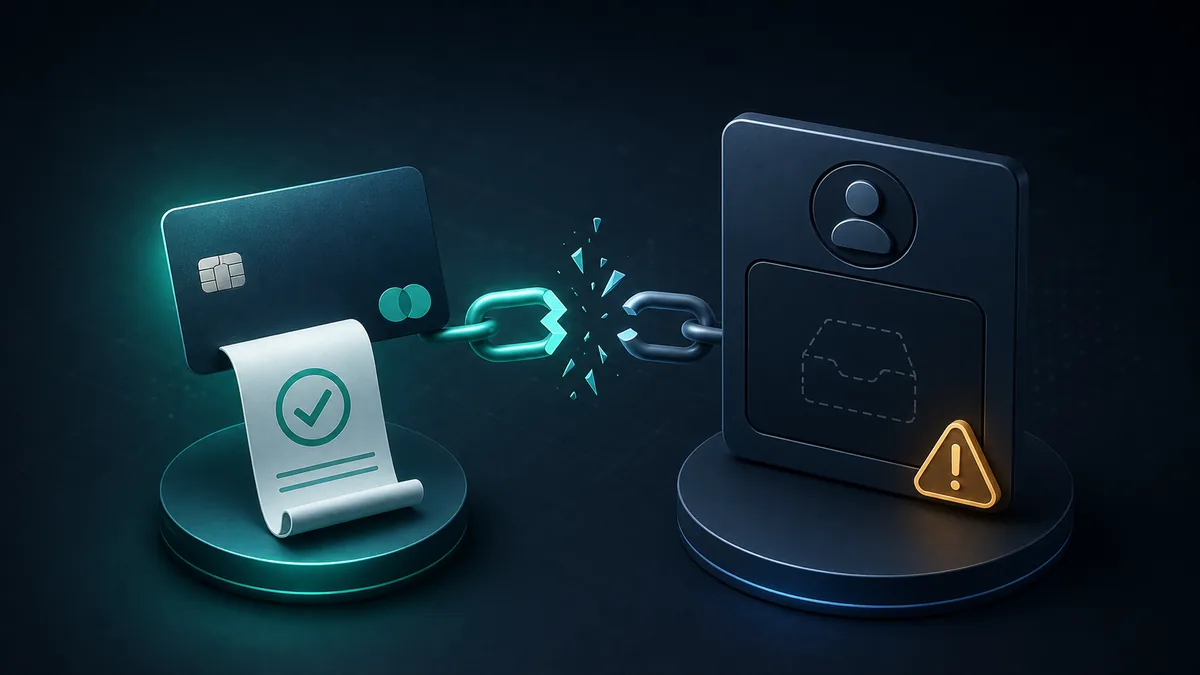
If you paid for ChatGPT but your account still shows the Free plan, first confirm which ChatGPT account and payment platform were used. Most cases come down to an account mismatch, an App Store purchase that needs restoring, or a subscription managed on a different platform.
The 2-minute check
- Open the receipt and identify whether you paid through chatgpt.com, Apple, or Google Play.
- Sign out of ChatGPT, then sign back in with the exact account that was active when you paid.
- If the purchase was made on iPhone or iPad, open ChatGPT and use Settings → Account → Restore purchases.
- Do not buy another subscription until you have checked every platform for an active plan.
1. Confirm that you are in the account that made the purchase
A ChatGPT subscription belongs to the ChatGPT account used at checkout. On mobile, it is also linked to the Apple ID or Google Play account that handled the payment. Signing in with another email address—even on the same phone—does not move the subscription.
- Check the email address shown in ChatGPT settings.
- Look for the purchase or renewal receipt and compare its account details.
- If you use more than one sign-in method, try the method originally used: email and password, Google, Apple, or Microsoft.
- If ChatGPT’s account switcher is available, verify which account is currently active. Billing and subscriptions stay separate when you switch accounts.
OpenAI says subscriptions cannot be transferred between ChatGPT accounts. If the plan is attached to an older account, you must use that account or cancel there and subscribe again on the account you want.
2. Check where the subscription is managed
| Where you paid | Where to check it | Who handles billing |
|---|---|---|
| chatgpt.com | ChatGPT → Settings → Billing | OpenAI |
| Apple App Store | iPhone Settings → your name → Subscriptions → ChatGPT | Apple |
| Google Play | Play Store → profile → Payments & subscriptions → Subscriptions | Google Play |
This distinction matters because an App Store plan will not be managed from the ChatGPT web billing screen, and a web subscription cannot be restored through Apple’s purchase system.
3. Restore an Apple App Store purchase
If you purchased ChatGPT through Apple and the paid plan does not appear in the iOS app:
- Open the ChatGPT app.
- Open Settings.
- Select Account.
- Choose Restore purchases.
This restores an eligible App Store purchase to the ChatGPT account originally linked to it. It does not transfer the plan to a different account.
4. If you see “subscription is associated with another account”
This message normally means your Apple ID or Google Play account is already connected to a different ChatGPT account. OpenAI’s guidance is to sign out and return to the original ChatGPT account used for the mobile purchase.
- Reinstalling the app will not change the account link.
- A mobile subscription cannot be shared by several ChatGPT accounts.
- A mobile subscription cannot be transferred to a newly created ChatGPT account.
5. Avoid a duplicate charge
Before paying again, check all three possible billing locations: Apple Subscriptions, Google Play Subscriptions, and ChatGPT web billing. Each platform can maintain its own active subscription.
A failed Apple renewal needs extra care. OpenAI warns that Apple may continue trying to recover the subscription. Starting a second plan elsewhere before canceling the Apple plan can later result in two active subscriptions.
6. Check whether the plan works on another device
Your paid features should be available on another device when you sign in to the same active ChatGPT account. If the plan appears on one device but not another, sign out on the affected device, update the app, and sign back in to the same account.
7. When to contact support or request a refund
If the correct account still does not show the plan, gather the receipt, charge date, amount, payment platform, and the email address of the ChatGPT account you believe was charged.
- Web purchase: Sign in to the charged account on the OpenAI Help Center and use the support chat.
- Apple purchase: Apple handles cancellation and refund requests.
- Google Play purchase: Follow Google Play’s refund route or contact OpenAI support while signed in to the relevant ChatGPT account.
OpenAI’s current refund page says accidental web and Google Play purchases are generally eligible when reported within 14 days, subject to eligibility and regional rules. Check the official policy before relying on a deadline.
What not to do
- Do not immediately purchase the plan again on another platform.
- Do not assume reinstalling the mobile app will relink a subscription.
- Do not delete an account until you understand where the subscription is billed.
- Do not send full card numbers, passwords, or verification codes to anyone claiming to offer support.
Frequently asked questions
Can I move ChatGPT Plus or Pro to another account?
No. OpenAI says ChatGPT subscriptions are not transferable. Cancel the plan on the old account, then purchase it on the intended account after the old subscription is resolved.
Can I use the subscription on another phone or computer?
Yes, as long as you sign in with the same active ChatGPT account that made the purchase.
Will deleting and reinstalling the app fix the wrong-account message?
No. The purchase remains linked to the original ChatGPT account and store account.
Official sources
- OpenAI: Subscription associated with another account
- OpenAI: Restoring an Apple App Store purchase
- OpenAI: Avoiding duplicate ChatGPT subscription charges
- OpenAI: Transferring a ChatGPT subscription
- OpenAI: ChatGPT subscription refunds
- OpenAI: Using a subscription on another device
HiseHub is an independent publication and is not affiliated with OpenAI. Product instructions and policies can change; the links above are the controlling sources.