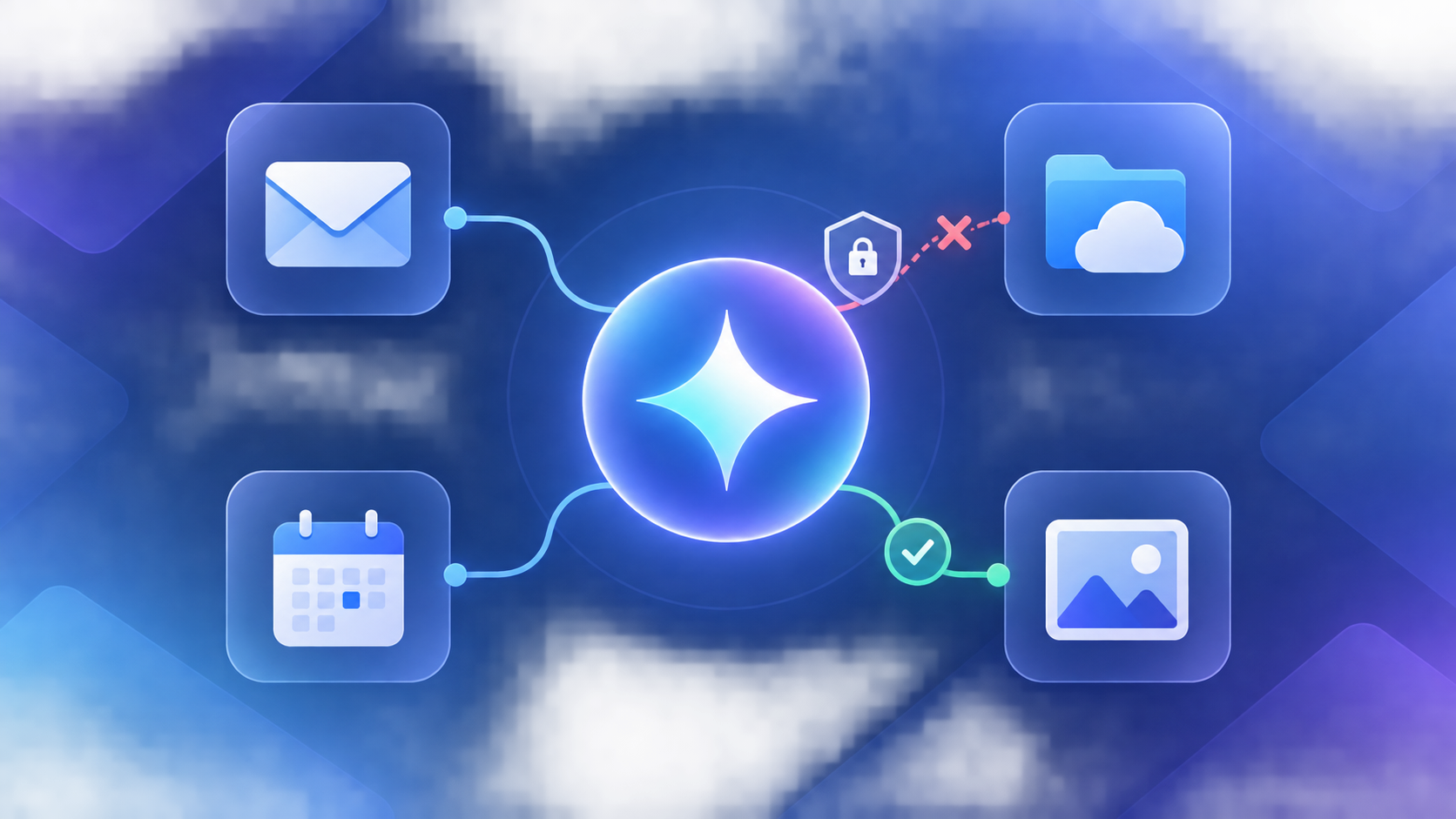
Short answer: Gemini Connected Apps usually fail for one of four different reasons: the account or device is not eligible, Keep Activity is off, a Google Workspace administrator has blocked the connection, or the app is connected but the request does not match what that app is allowed to do. Start by recording the account type and Gemini surface you are using, then check Connected Apps and Keep Activity before clearing caches or changing a subscription. Gmail, Drive, Calendar, and Photos do not have identical availability or permissions.
Quick diagnosis: what does “not working” mean?
Use the symptom, not the product name, to choose your first check. A missing menu is an eligibility or policy question; an authorization error is a connection question; a bad answer after authorization may simply be outside the app’s supported actions.
| What you see | Likely layer | First check | Pass condition |
|---|---|---|---|
| No Connected Apps control | Account, surface, country, language, age, or admin policy | Confirm the signed-in account and whether it is personal or Workspace | The same account shows the settings on a supported Gemini surface |
| Gmail or Drive appears, but Calendar or Photos does not | Per-app availability | Compare the app list for this account and device | You test only an app that is actually listed and enabled |
| The switch is on, but Gemini says it cannot access the app | Authorization, wrong account, prompt scope, or temporary service state | Start a new chat and explicitly mention the app | A low-sensitivity request returns information you can verify |
| Personal account works; work account does not | Workspace edition or administrator controls | Ask the admin to check Gemini and app connections | The admin confirms the connection is enabled for your account |
| Web works; phone does not | Different Gemini surface, app version, device profile, or account | Compare the same account and the app’s current Connected Apps settings | The feature is available on that specific surface, not merely on another device |
| It stopped after Keep Activity was disabled | Activity requirement | Review Keep Activity before changing permissions | You understand which surface-specific features return when it is enabled |
1. Confirm the account, device, and Gemini surface
Before touching permissions, write down four things: the Google account shown in the avatar, whether it is a personal or work/school account, the device and operating system, and where the request starts. “Gemini on the web,” the Android app, iOS, an Android Work Profile, and Gemini in Chrome are different product surfaces. A control appearing in one does not prove that it must appear in another. Our Gemini hub covers adjacent limits and feature changes, but this page stays focused on Connected Apps diagnosis.
Also note the language and country shown by the account. Google says Connected Apps and their availability can vary by location, language, device, and Gemini app. That makes a missing Photos or Calendar entry different from a broken universal switch. If you are testing a work account, do not silently switch to a personal account and treat the result as proof that the organization is misconfigured.
If the problem is actually a paid benefit not showing, use our Google AI Pro benefits troubleshooting guide separately. Subscription eligibility and Connected Apps permissions overlap in the account, but they are not the same diagnosis.
2. Check Keep Activity before reconnecting anything
Keep Activity is an important gate, but it is not a synonym for “all Google data is available.” For personal accounts, Google’s Connected Apps documentation says that when Keep Activity is off, Connected Apps are unavailable on gemini.google.com, iOS, and smart watches. Android can retain a narrower set of device-assistance connections, so do not turn that into the rule “every app is disabled everywhere.”
Open Gemini’s account settings and review the Keep Activity setting for the account you are actually using. If the setting is controlled by an organization, you may not be able to change it yourself. After making a deliberate change, start a new chat and test one app; do not use a multi-app prompt while you are still isolating the cause.
Temporary Chat is another easy source of confusion. Google says temporary chats cannot use Connected Apps that require Keep Activity. A clean temporary chat is useful for some privacy-sensitive questions, but it is not a valid test of Gmail or Drive access.
3. Connect the specific app and authorize the right account
In Gemini settings, open the Connected Apps area and look for the target app. On the web, Google also documents using an @ mention in a prompt. If an app is not connected, Gemini may offer a connection flow or request permission. Follow that flow in the same browser profile, and confirm that the authorization page shows the same Google account as the Gemini chat.
Test one service at a time. For example, ask a harmless question that can be checked manually against a recent, non-sensitive Calendar event. If that succeeds, move to Drive or Gmail. A request such as “search my Gmail” is not a proof that every Gmail action is supported; Google documents limits on actions such as drafting, deleting, or counting messages. Drive access also does not mean that Gemini can perform every folder, media, or file-management operation.
Photos deserves its own check. The app list and capabilities can vary by account, eligibility, surface, and location. Do not assume that a Photos tile missing from the web must be restored by reinstalling the mobile app. First record whether Photos is offered in that account’s Connected Apps settings and whether you are using a supported surface.
4. Work and school accounts need an administrator check
Workspace Connected Apps are governed by more than the user’s personal Gemini preference. Google lists requirements such as a qualifying Workspace edition, an eligible account, administrator-enabled app connections, and administrator-controlled activity settings. Age, location, language, and device can still affect availability.
Ask the administrator to verify the policy for the same organizational unit or group as your account. Give them the exact account, Gemini surface, app name, timestamp, and error text. “Gemini works for another employee” is weak evidence if that person has a different edition, organizational unit, or country.
Some Workspace apps may require an explicit @ mention even after they are enabled. A multi-app request can also fail if one required app is disabled. Re-test with one enabled app first, then add another only after the first result is reproducible. If an administrator disables an app after a conversation, old chat text may remain visible while new data cannot be retrieved; do not mistake the old text for a live connection.
5. Do not confuse eligibility with account safety controls
Family Link, supervised accounts, age requirements, and Android Work Profile policies can change what a user sees. A missing feature under a supervised account is not a reason to bypass the control or create a second account. Check Google’s eligibility guidance and ask the account administrator or family manager when appropriate.
Likewise, a company-managed Work Profile can have different app permissions from the personal profile on the same phone. Record which profile launched Gemini. Testing the personal profile and reporting it as a Work Profile result can send an administrator looking in the wrong place.
6. Web, Android, iPhone, and Chrome: use a surface matrix
Use this matrix as a troubleshooting record rather than a promise that every cell is supported. The official Connected Apps help page is the authority for the account-specific list; Google can change the list without changing your subscription.
| Surface | What to record | Safe interpretation |
|---|---|---|
| Gemini web | Account, browser profile, Keep Activity, visible app list | A web result proves only that account and web surface can use that connection |
| Android | Personal or Work Profile, app version, device-assistance setting | Android may expose a different set of device-related connections |
| iPhone/iPad | Signed-in account, iOS app state, Keep Activity, visible app list | Do not infer iOS availability from Android or web |
| Gemini in Chrome | Chrome profile, account, exact control shown | Treat Chrome as a separate surface and follow its current account-specific UI |
When a page is unavailable during a diagnosis, use the current in-product settings and Google’s eligibility guidance rather than copying an old screenshot. Product names, menu labels, and supported surfaces can change.
7. Connected does not mean “every answer can use private data”
A connected app can still return “I can’t access that” for a request outside its documented scope, for a wrong account, or when the data is not available to that app. Check the prompt first: explicitly name one connected app, ask for a small verifiable result, and avoid confidential material. If the result is wrong, compare it with the source application and check whether the event, message, or file really belongs to the connected account.
Google’s Personal Intelligence documentation describes a related personalization flow that may use connected data such as emails, files, events, or Photos for eligible users. That control is not the same as the basic Connected Apps switch. Disconnecting an app or deleting source data also does not automatically delete Gemini Apps Activity; Google says changes can take time. Manage the connection and activity separately.
8. A low-risk repair sequence
- Record account type, device/profile, country/language, Gemini surface, app name, and exact error.
- Confirm that the target app is listed for this account and surface.
- Check Keep Activity and whether it is user- or admin-controlled.
- Start a normal, non-temporary chat and mention one app with
@if the surface supports it. - Use a low-sensitivity request whose answer can be checked in the source app.
- Revoke and reconnect only the affected app if the authorization is clearly stale; avoid revoking every Google permission at once.
- Try another supported surface with the same account to separate account policy from an app UI problem.
- For a work/school account, send the administrator the evidence above before reinstalling anything.
- Only after permissions and eligibility are confirmed should you try ordinary UI repairs such as signing out, updating the app, or clearing a browser cache.
Privacy: connect the smallest useful scope
Use a test message, event, or file that contains no customer, medical, financial, legal, or confidential company information. Google explains that some connected data may be used in Gemini features and that a subset of activity can be reviewed to improve services. Read the current Google privacy controls for your account before connecting sensitive data.
Keep three actions separate in your notes: disconnecting an app, deleting the source item, and deleting Gemini Apps Activity. They affect different places and are not interchangeable. If the goal is simply to troubleshoot a connection, there is no reason to test with the most sensitive data in your account.
Success checklist
- You know which Google account and Gemini surface produced the result.
- The target app is visible and enabled for that account, or an administrator has confirmed why it is unavailable.
- Keep Activity and any organization policy are understood, not guessed.
- A single low-sensitivity request returns a result you can verify in the source app.
- You know whether a failure is an unsupported action rather than a broken connection.
- You did not expose confidential data while testing.
FAQ
Why are Gemini Connected Apps missing?
The account, device, Gemini surface, location, language, age/eligibility, Keep Activity setting, or Workspace policy may not qualify. Confirm those layers before treating it as a subscription issue.
Does Keep Activity have to be on?
For many personal-account Connected Apps surfaces, yes. Google documents platform-specific differences, including a narrower Android exception, so check the account’s current help and settings rather than applying one rule to every device.
Why does Gmail work on one account but not another?
The accounts may have different account types, Workspace policies, editions, activity controls, countries, languages, or app availability. Compare the accounts using the same surface and a single test request.
Can work or school accounts use Connected Apps?
Some qualifying Workspace accounts can, but the administrator must enable the relevant connections and other eligibility conditions still apply. Ask the admin to verify the policy for your organizational unit.
Does disconnecting an app delete data already stored in Gemini Activity?
No. Google’s personalization guidance treats the connection and Gemini Apps Activity as separate controls. Disconnect the app and manage/delete activity separately when that is your goal.
Is this the same as uploading a file to Gemini?
No. A Connected App is an account-level connection to an eligible service; uploading a file is a separate workflow with its own limits and errors. See our Gemini file upload fixes guide if the problem starts with an attachment.