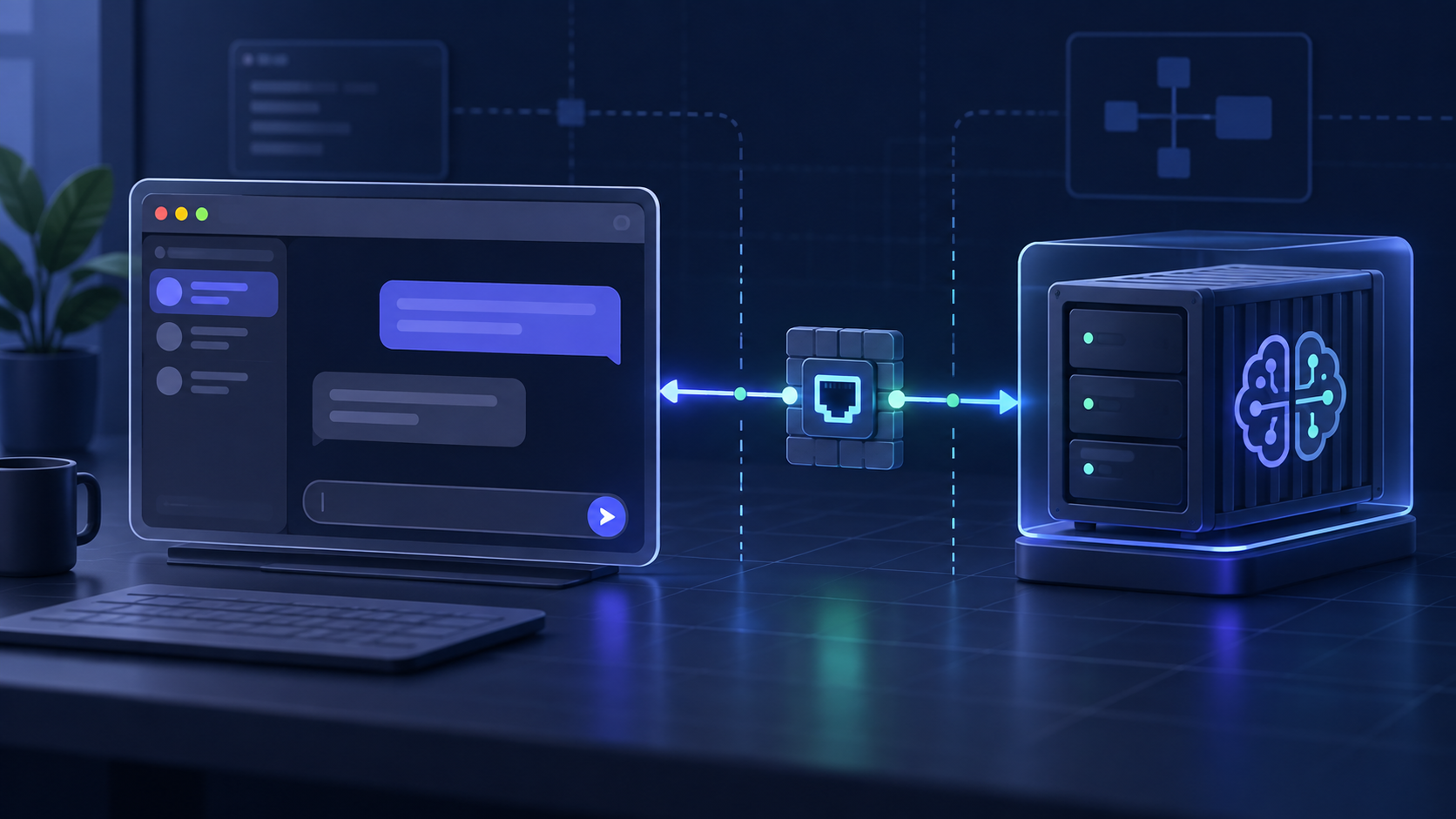
Short answer: when Open WebUI cannot connect to Ollama, the most common mistake is using an address that belongs to the wrong machine. localhost inside a Docker container means the container itself, not the host running Ollama. Identify where the request is made, test the Ollama API from that same place, then choose the matching connection URL.
This guide focuses on the Ollama protocol connection in Open WebUI. It covers native installs, Docker, Docker Compose and a private remote server. The commands below are examples to adapt to your own deployment; they are not HiseHub hardware tests.
11434 directly to the internet. For a remote connection, prefer a private network, VPN or a properly authenticated reverse proxy and restrict the firewall to the machines that need it.First: identify which machine is making the request
There are two different connection paths in Open WebUI. A user-level or browser-side connection is opened by your browser. An admin/global Ollama connection is opened by the Open WebUI backend. The same URL can work in one path and fail in the other because localhost changes meaning.
| Open WebUI setup | Where Ollama runs | Typical URL to try |
|---|---|---|
| Native Python or desktop | Same machine | http://127.0.0.1:11434 |
| Open WebUI in Docker | Docker host | http://host.docker.internal:11434 |
| Docker Compose | Another service in the same Compose network | http://ollama:11434 (the service name) |
| Open WebUI in Docker | Another private machine | http://<private-server-ip>:11434 |
| Docker with host networking | Host machine | http://127.0.0.1:11434 |
These are topology examples, not universal values. In Docker, use the hostname that the Open WebUI container can resolve and reach. Open WebUI’s own quick-start documentation recommends host.docker.internal for a container reaching a host service, while Compose service names work when both containers share a network.
A short diagnostic sequence
- Confirm Ollama is serving. On the machine where Ollama runs, open
http://127.0.0.1:11434/api/tagsor runcurl http://127.0.0.1:11434/api/tags. A JSON response means the API is answering locally; a refused connection means Open WebUI is not the first problem to fix. - Test from the Open WebUI environment. If Open WebUI runs in Docker, a successful test on the host is not enough. Test the host gateway, Compose service name or private IP from inside the container. Some images do not include
curl; use an available HTTP client or inspect the container logs instead. - Read the backend log. For a container named
open-webui,docker logs --tail=200 open-webuican distinguish DNS failure, timeout, connection refusal and an API response error. Match the timestamp to the failed connection attempt. - Set the connection in the right place. In current Open WebUI builds, go to Settings → Admin → Connections and find Manage Ollama API Connections. Names can move slightly between releases, so use the current screen labels rather than copying an old screenshot.
- Verify the result in a new chat. A green connection check is useful but not the complete success criterion. Confirm that a model appears, a new chat can load it and a short prompt receives a response.
Docker: the localhost trap and the host gateway fix
When Open WebUI runs in a container, localhost points back to that container. It does not point to the operating system where you started Docker. A common host-install pattern therefore needs both a reachable host name and an Ollama listener that accepts the container’s connection.
# Generate this once; keep the value for future recreations.
WEBUI_SECRET_KEY="$(openssl rand -hex 32)"
docker run -d \
  -p 127.0.0.1:3000:8080 \
  --add-host=host.docker.internal:host-gateway \
  -v open-webui:/app/backend/data \
  -e "WEBUI_SECRET_KEY=${WEBUI_SECRET_KEY}" \
  --name open-webui \
  --restart always \
  ghcr.io/open-webui/open-webui:main
New install only: this example binds the WebUI to loopback, so it is reachable on the Docker host but not directly from the public internet. The shell variable is shown to make the secret safe to generate; store the same value in a protected environment file or secret manager before recreating the container. If an existing installation already has users or data, back up its volume and preserve its current WEBUI_SECRET_KEY—do not generate a new key just to copy this example.
\n
In the Open WebUI Ollama connection, try http://host.docker.internal:11434. On the Ollama host, its listener may need to bind beyond loopback. Ollama documents using OLLAMA_HOST=0.0.0.0 when another machine or container must reach it; apply that only within a network boundary you control, then restart Ollama and keep the firewall restricted.
If your Docker platform does not provide host.docker.internal automatically, the --add-host mapping above or the platform’s equivalent is needed. If you use host networking on Linux, the address and exposed port change: Open WebUI’s documented example uses http://127.0.0.1:11434 for Ollama and serves the WebUI on port 8080.
Docker Compose: use the service name
When Ollama and Open WebUI are separate Compose services, the reliable address is normally the Ollama service name on the shared network, not localhost and not the host’s published port.
name: hisehub-open-webui

services:
  ollama:
    image: ollama/ollama:latest
    # No host port: keep the Ollama API on the Compose network.
    volumes:
      - ollama-data:/root/.ollama

  open-webui:
    image: ghcr.io/open-webui/open-webui:main
    ports:
      - "127.0.0.1:3000:8080"
    environment:
      OLLAMA_BASE_URL: http://ollama:11434
      WEBUI_SECRET_KEY: ${WEBUI_SECRET_KEY:?set WEBUI_SECRET_KEY in .env}
    volumes:
      - open-webui-data:/app/backend/data
    depends_on:
      - ollama
    restart: unless-stopped

volumes:
  ollama-data:
  open-webui-data:
Before the first start, create the .env file in the same directory and keep it out of version control:
\n
umask 077\nprintf 'WEBUI_SECRET_KEY=%s\n' "$(openssl rand -hex 32)" > .env\ndocker compose config --quiet\ndocker compose up -d\n
The exact image tags, GPU settings and health checks depend on your deployment. The important part of this example is the network name: inside Compose, ollama resolves to the Ollama service. If you change the service name, change the URL with it. The top-level volumes: declaration is intentional: it makes both named data volumes part of the Compose project instead of leaving the file incomplete.
\n
docker compose down -v while troubleshooting; that removes named volumes. Inspect the current file, back up both data volumes and preserve the existing secret before applying a controlled change. If Ollama already runs on the host or another machine, remove the duplicate ollama service and set OLLAMA_BASE_URL to the private address reachable from the Open WebUI container.Read the error as a network clue
| Symptom | Likely layer | Smallest next check |
|---|---|---|
| Connection refused | Nothing is listening at that address/port, or the listener is bound only to loopback. | Test /api/tags on the Ollama host, then verify the listener address and firewall. |
| Timeout | Routing or firewall problem, or the target is not reachable from the Open WebUI environment. | Test the same private IP from the container/server that runs Open WebUI. |
| Could not resolve host | The container cannot resolve the hostname. | Use a Compose service name, host.docker.internal with a host mapping, or a resolvable private IP. |
| Model list is empty | The endpoint may be reachable, but the provider path, model catalog or permissions are wrong. | Check the Ollama URL, run ollama list on the Ollama host, and inspect the Open WebUI connection log. |
| 404 on an Ollama connection | The URL may point at an OpenAI-compatible endpoint or include the wrong path. | Use the Ollama connection type for the Ollama API base, and the OpenAI-compatible type for providers that implement that protocol. |
| 502 after a reverse proxy | The Open WebUI backend is resolving the proxy hostname from inside its own network. | Use an internal service name or reachable private address for the backend-side connection. |
Do not mix Ollama and OpenAI-compatible endpoints
Open WebUI supports multiple provider protocols. An Ollama server should be added through its Ollama connection area. A server such as LocalAI, LM Studio or another OpenAI-compatible service belongs in the OpenAI-compatible connection area, with the base URL and model IDs required by that provider. Choosing the wrong protocol can look like a network failure even when the host and port are reachable.
Do not add /v1 to an Ollama URL just because another provider uses it, and do not assume that every compatible provider exposes a model list automatically. Check the provider’s own API documentation and use an explicit model ID when the provider does not publish one.
If it connects but replies are blank or hang
A working connection and a usable generation are separate checks. If models appear but a prompt fails, first look at the Open WebUI and Ollama logs, then check context settings and model memory. Open WebUI documents that a per-chat or model num_ctx setting can override Ollama’s OLLAMA_CONTEXT_LENGTH. A small context can truncate a long prompt or tool schema and look like a blank response; a large context can increase memory pressure.
For a local model, compare the model tag, context and available memory before changing drivers. HiseHub’s LLM VRAM Calculator is a planning aid for a small verified catalog, not a benchmark. After loading the exact tag, use ollama ps to inspect the actual processor split.
A practical success checklist
- The Ollama API answers from the same network namespace as Open WebUI.
- The URL uses the correct meaning of
localhost, host gateway, Compose service name or private IP. - The Open WebUI connection is configured under the correct provider protocol.
- A model is installed and appears in a new chat.
- A short prompt returns a response without a new DNS, timeout or refusal error.
- Port 11434 is not unnecessarily exposed to the public internet.
Frequently asked questions
Why does localhost work in a browser but fail in the admin connection?
The browser and the Open WebUI backend are different request origins. The browser’s localhost is the computer running the browser; the admin connection’s localhost is the Open WebUI server or container. Use the address reachable from the component that actually sends the request.
Should I use the server’s public IP?
Only when the route is deliberately private and protected. A public IP plus an open Ollama port is not an authentication design. Prefer a private IP, VPN or authenticated proxy and a narrow firewall rule.
Do I need an API key for local Ollama?
A local Ollama connection normally does not use a cloud API key, but that does not make an exposed endpoint safe. Keep the service private and follow the security model of any proxy or remote network in front of it.
Which existing HiseHub tool should I use next?
Use the self-hosted AI tools directory to choose an interface, the interface comparison to understand trade-offs, and the Ollama CPU/GPU guide when the connection works but inference uses the wrong processor.
Official references
- Open WebUI Quick Start — Docker host gateway, connection locations and deployment variants.
- Open WebUI Connection Errors — backend versus browser requests, Docker networking and Ollama listener guidance.
- Open WebUI: Starting with Ollama — provider setup and context considerations.
- Ollama FAQ — server configuration and context-related checks.
- Ollama Docker documentation — container deployment considerations.
- Docker Compose volumes reference — why named volumes are declared at the top level and persist data.
\n
Sources checked September 16, 2026. Provider screens, image tags, defaults and network behavior can change; verify the official documentation for your installed version.